
Based on NetworkChuck’s YT video I got inspired and created my first blog. Fully automated, with the use of Obsidian. Below the adapted instructions. I leave as much as possible in tact, but I am not using hostinger, I just leave the files within github. Also I struggled with the images, while this didn’t work for me. Thanks to some help of chatgtp I found the solution.
Because I use Windows, I removed the Linux/ Mac instructions, but in general it is the same, except the scripts, which you needs to adapt in that case (use chatgtp).
Hope it will help you, have fun!

Obsidian
- Obsidian is notes application, no opinion about this yet, but I noticed a lot of positive recommendations, so I will try it out for the next 90 days. Go download it: https://obsidian.md/
The Setup
Follow the instuctions of Chuck:
- Create a new folder labelled posts. This is where you will add your blog posts
- ….that’s all you have to do
- Actually…wait….find out where your Obsidian directories are. Right click your posts folder and choose show in system explorer
- You’ll need this directory in upcoming steps.
Setting up Hugo
Install Hugo
Prerequisites
- Install Git: https://github.com/git-guides/install-git
- Install Go: https://go.dev/dl/
Install Hugo
Link: https://gohugo.io/installation/
Create a new site
## Verify Hugo works
hugo version

## Create a new site

hugo new site websitename
cd websitename
Download a Hugo Theme
- Find themes from this link: https://themes.gohugo.io/
- follow the theme instructions on how to download. The BEST option is to install as a git submodule
## Initialize a git repository (Make sure you are in your Hugo website directory)

git init

## Set global username and email parameters for git

git config --global user.name "YOUR NAME"
git config --global user.email "YOURNAM@yourdomain.com"


## Install a theme (we are installing the Terminal theme here). Once downloaded it should be in your Hugo themes folder
## Find a theme ---> [https://themes.gohugo.io/](https://themes.gohugo.io/)

git submodule add -f https://github.com/panr/hugo-theme-terminal.git themes/terminal
Adjust Hugo settings
- Most themes you download will have an example configuration you can use. This is usually the best way to make sure Hugo works well and out of the box.
- For the Terminal theme, they gave this example config below.
- We will edit the hugo.toml file to make these changes. —->
nano hugo.toml(Linux/Mac) ornotepad hugo.toml(Windows) orcode hugo.toml(All platforms) (Which I prefer, just install Visual code)
baseurl = "/"
languageCode = "en-us"
# Add it only if you keep the theme in the `themes` directory.
# Remove it if you use the theme as a remote Hugo Module.
theme = "terminal"
paginate = 5

[params]
  # dir name of your main content (default is `content/posts`).
  # the list of set content will show up on your index page (baseurl).
  contentTypeName = "posts"

  # if you set this to 0, only submenu trigger will be visible
  showMenuItems = 2

  # show selector to switch language
  showLanguageSelector = false

  # set theme to full screen width
  fullWidthTheme = false

  # center theme with default width
  centerTheme = false

  # if your resource directory contains an image called `cover.(jpg|png|webp)`,
  # then the file will be used as a cover automatically.
  # With this option you don't have to put the `cover` param in a front-matter.
  autoCover = true

  # set post to show the last updated
  # If you use git, you can set `enableGitInfo` to `true` and then post will automatically get the last updated
  showLastUpdated = false

  # Provide a string as a prefix for the last update date. By default, it looks like this: 2020-xx-xx [Updated: 2020-xx-xx] :: Author
  # updatedDatePrefix = "Updated"

  # whether to show a page's estimated reading time
  # readingTime = false # default

  # whether to show a table of contents
  # can be overridden in a page's front-matter
  # Toc = false # default

  # set title for the table of contents
  # can be overridden in a page's front-matter
  # TocTitle = "Table of Contents" # default


[params.twitter]
  # set Twitter handles for Twitter cards
  # see https://developer.twitter.com/en/docs/tweets/optimize-with-cards/guides/getting-started#card-and-content-attribution
  # do not include @
  creator = ""
  site = ""

[languages]
  [languages.en]
    languageName = "English"
    title = "Terminal"

    [languages.en.params]
      subtitle = "A simple, retro theme for Hugo"
      owner = ""
      keywords = ""
      copyright = ""
      menuMore = "Show more"
      readMore = "Read more"
      readOtherPosts = "Read other posts"
      newerPosts = "Newer posts"
      olderPosts = "Older posts"
      missingContentMessage = "Page not found..."
      missingBackButtonLabel = "Back to home page"
      minuteReadingTime = "min read"
      words = "words"

      [languages.en.params.logo]
        logoText = "Terminal"
        logoHomeLink = "/"

      [languages.en.menu]
        [[languages.en.menu.main]]
          identifier = "about"
          name = "About"
          url = "/about"
        [[languages.en.menu.main]]
          identifier = "showcase"
          name = "Showcase"
          url = "/showcase"
Test Hugo
## Verify Hugo works with your theme by running this command

hugo server -t themename
Walking Through the Steps
NOTE: There is a MEGA SCRIPT later in this blog that will do everything in one go.
Syncing Obsidian to Hugo
I sync my Obsidian files via OneDrive (the location of Vault is in separate map, with this I am able to access my Obsidian anytime, anywhere)
Windows
robocopy "C:\Users\USER\OneDrive\MAP\SUBMAP\posts" "C:\Users\USER\Documents\YOUR-HUGO-blog\content\posts" /mir
Add some frontmatter
---
title: blogtitle
date: 2024-11-06
draft: false
tags:
  - tag1
  - tag2
---
Transfer Images from Obsidian to Hugo
This was painful, while inititial everything worked, till I moved the images within Obsidian to generic location. Go to settings and under “Files and links” you can specify the new folder path.
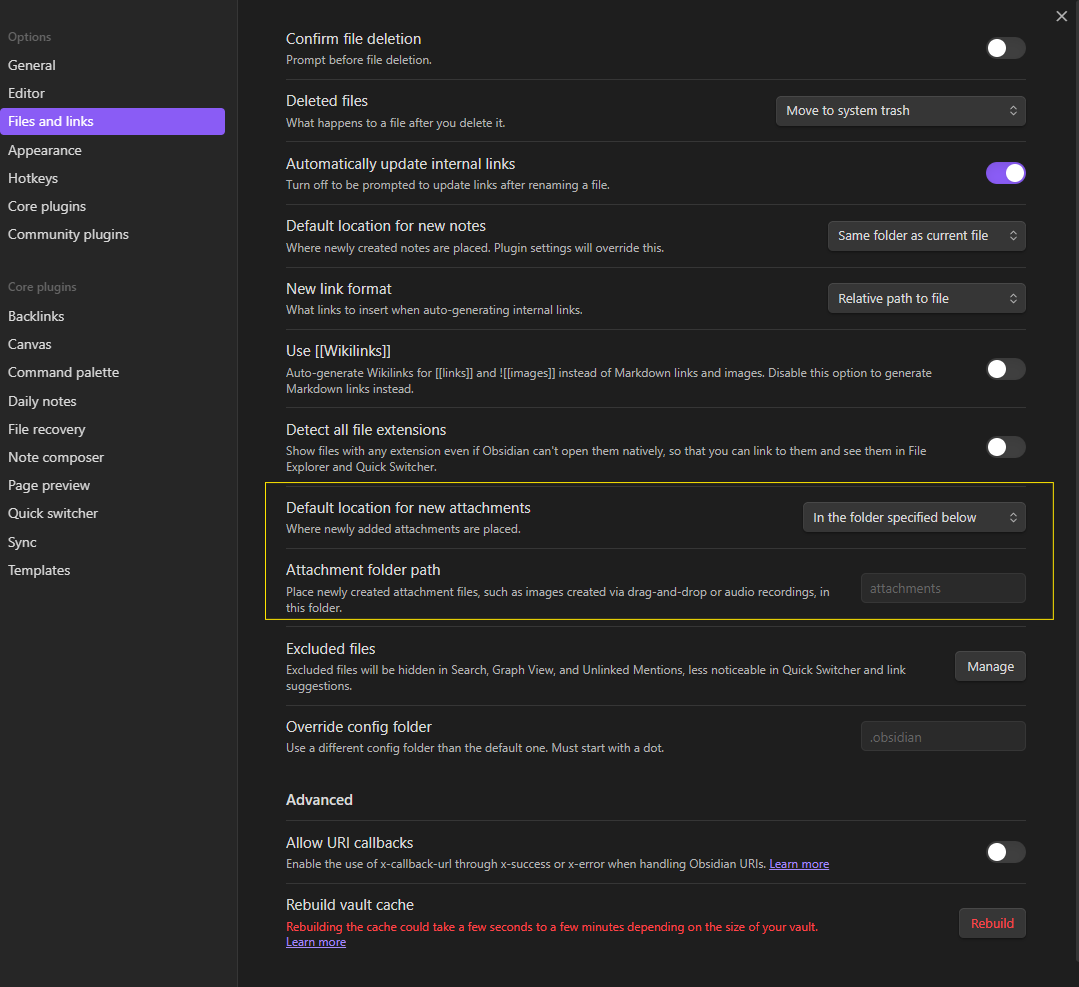
This makes is much cleaner to work with Obsidian, but it broke the script of Chuck. Thanks to several trial and errors with lovely chatgtp I managed to create an updated version, see below. Including check of cover image.
Windows
import os
import re
import shutil
import urllib.parse
# Paths for posts, attachments, and static images
posts_dir = r"C:\Users\YOURUSER\YOURBLOGDIR\hb100-blog\content\posts"
attachments_dir = r"C:\Users\YOURUSER\YOUR-OBSIDIAN-VAULT\hb100\attachments"
static_images_dir = r"C:\Users\YOURUSER\YOURBLOGDIRs\hb100-blog\static\images"
# Ensure the images folder exists
os.makedirs(static_images_dir, exist_ok=True)
# Regex to find images in the Markdown body (matches both `../attachments/` and `attachments/`)
image_regex = re.compile(r'!\[.*?\]\((?:\.\./)?attachments/([^)]*\.(?:png|jpg|jpeg|gif))\)')
# Regex to find `cover.image` in the front matter
cover_regex = re.compile(r'cover:\s*\n\s*image:\s*(?:\.\./)?attachments/([^)]*\.(?:png|jpg|jpeg|gif))')
# List files in the attachments directory for debugging
print(f"\n📂 Files in attachments directory: {os.listdir(attachments_dir)}")
# Iterate through all Markdown files
for filename in os.listdir(posts_dir):
if filename.endswith(".md"):
filepath = os.path.join(posts_dir, filename)
with open(filepath, "r", encoding="utf-8") as file:
content = file.read()
# Find all images in the Markdown body
matches = image_regex.findall(content)
print(f"\n🔍 Found images in {filename}: {matches}")
# Find cover image in the front matter
cover_match = cover_regex.search(content)
cover_image = cover_match.group(1) if cover_match else None
if cover_image:
print(f"🖼️ Found cover image: {cover_image}")
# Process images in the Markdown body
for image_name in matches:
print(f"\n🌐 Image filename in Markdown: {image_name}")
# Decode the filename for the operating system
image_name_system = urllib.parse.unquote(image_name)
print(f"📝 Decoded filename for OS: {image_name_system}")
# Define source and destination paths
image_source = os.path.join(attachments_dir, image_name_system)
image_dest = os.path.join(static_images_dir, image_name_system)
# Copy the image if it still exists in attachments
if os.path.exists(image_source):
print(f"✅ Image found in attachments: {image_source}")
try:
shutil.copy2(image_source, image_dest)
print(f"📂 Copied to: {image_dest}")
except Exception as e:
print(f"❌ Error copying image: {e}")
else:
print(f"⚠ Image not found in attachments: {image_source}")
# Update Markdown to reference the correct /images/ path
new_markdown_link = f""
content = re.sub(rf'!\[.*?\]\((?:\.\./)?attachments/{re.escape(image_name)}\)', new_markdown_link, content)
print(f"📝 Updated Markdown link to: {new_markdown_link}")
# Process the cover image if it exists
if cover_image:
cover_image_system = urllib.parse.unquote(cover_image)
cover_source = os.path.join(attachments_dir, cover_image_system)
cover_dest = os.path.join(static_images_dir, cover_image_system)
if os.path.exists(cover_source):
print(f"✅ Cover image found: {cover_source}")
try:
shutil.copy2(cover_source, cover_dest)
print(f"📂 Cover image copied to: {cover_dest}")
except Exception as e:
print(f"❌ Error copying cover image: {e}")
else:
print(f"⚠ Cover image not found: {cover_source}")
# Update the cover.image reference in the front matter
new_cover_line = f"cover:\n image: /images/{cover_image}"
content = re.sub(r'cover:\s*\n\s*image:\s*(?:\.\./)?attachments/.*', new_cover_line, content)
print(f"📝 Updated cover image reference to: {new_cover_line}")
# Save the updated Markdown file
with open(filepath, "w", encoding="utf-8") as file:
file.write(content)
print("\n✅ Markdown files processed, including cover images!")
Hugo script/ workflow
I use Github and domain setup via cloudflare instead of the named solution of hostinger. For this follow the instructions of https://gohugo.io/hosting-and-deployment/hosting-on-github/ to run script on github.
The Mega Script
Windows (Powershell)
# PowerShell Script for Windows


# Set variables for Obsidian to Hugo copy
$sourcePath = "C:\Users\path\to\obsidian\posts"
$destinationPath = "C:\Users\path\to\hugo\posts"


# Set Github repo

$myrepo = "git@github.com:USER/repo.git"


# Set error handling

$ErrorActionPreference = "Stop"

Set-StrictMode -Version Latest


# Change to the script's directory

$ScriptDir = Split-Path -Parent $MyInvocation.MyCommand.Definition

Set-Location $ScriptDir


# Check for required commands

$requiredCommands = @('git', 'hugo')


# Check for Python command (python or python3)

if (Get-Command 'python' -ErrorAction SilentlyContinue) {

    $pythonCommand = 'python'

} elseif (Get-Command 'python3' -ErrorAction SilentlyContinue) {

    $pythonCommand = 'python3'

} else {

    Write-Error "Python is not installed or not in PATH."

    exit 1

}


foreach ($cmd in $requiredCommands) {

    if (-not (Get-Command $cmd -ErrorAction SilentlyContinue)) {

        Write-Error "$cmd is not installed or not in PATH."

        exit 1

    }

}


# Step 1: Check if Git is initialized, and initialize if necessary

if (-not (Test-Path ".git")) {

    Write-Host "Initializing Git repository..."

    git init

    git remote add origin $myrepo

} else {

    Write-Host "Git repository already initialized."

    $remotes = git remote

    if (-not ($remotes -contains 'origin')) {

        Write-Host "Adding remote origin..."

        git remote add origin $myrepo

    }

}


# Step 2: Sync posts from Obsidian to Hugo content folder using Robocopy

Write-Host "Syncing posts from Obsidian..."


if (-not (Test-Path $sourcePath)) {

    Write-Error "Source path does not exist: $sourcePath"

    exit 1

}


if (-not (Test-Path $destinationPath)) {

    Write-Error "Destination path does not exist: $destinationPath"

    exit 1

}


# Use Robocopy to mirror the directories

$robocopyOptions = @('/MIR', '/Z', '/W:5', '/R:3')

$robocopyResult = robocopy $sourcePath $destinationPath @robocopyOptions


if ($LASTEXITCODE -ge 8) {

    Write-Error "Robocopy failed with exit code $LASTEXITCODE"

    exit 1

}


# Step 3: Process Markdown files with Python script to handle image links

Write-Host "Processing image links in Markdown files..."

if (-not (Test-Path "images.py")) {

    Write-Error "Python script images.py not found."

    exit 1

}


# Execute the Python script

try {

    & $pythonCommand images.py

} catch {

    Write-Error "Failed to process image links."

    exit 1

}


# Step 4: Build the Hugo site

Write-Host "Building the Hugo site..."

try {

    hugo

} catch {

    Write-Error "Hugo build failed."

    exit 1

}


# Step 5: Add changes to Git

Write-Host "Staging changes for Git..."

$hasChanges = (git status --porcelain) -ne ""

if (-not $hasChanges) {

    Write-Host "No changes to stage."

} else {

    git add .

}


# Step 6: Commit changes with a dynamic message

$commitMessage = "New Blog Post on $(Get-Date -Format 'yyyy-MM-dd HH:mm:ss')"

$hasStagedChanges = (git diff --cached --name-only) -ne ""

if (-not $hasStagedChanges) {

    Write-Host "No changes to commit."

} else {

    Write-Host "Committing changes..."

    git commit -m "$commitMessage"

}


# Step 7: Push all changes to the main branch

Write-Host "Deploying to GitHub Master..."

try {

    git push origin master

} catch {

    Write-Error "Failed to push to Master branch."

    exit 1

}


# Step 8: Push the public folder to the hostinger branch using subtree split and force push

Write-Host "Deploying to GitHub Hostinger..."


# Check if the temporary branch exists and delete it

$branchExists = git branch --list "hostinger-deploy"

if ($branchExists) {

    git branch -D hostinger-deploy

}


# Perform subtree split

try {

    git subtree split --prefix public -b hostinger-deploy

} catch {

    Write-Error "Subtree split failed."

    exit 1

}


# Push to hostinger branch with force

try {

    git push origin hostinger-deploy:hostinger --force

} catch {

    Write-Error "Failed to push to hostinger branch."

    git branch -D hostinger-deploy

    exit 1

}


# Delete the temporary branch

git branch -D hostinger-deploy


git add -A

git commit -m "Create hugo.yaml"

git push


Write-Host "All done! Site synced, processed, committed, built, and deployed."
Done!
From now on, just blog in Obsidian. When done, just run the masterscript.
For me: open powershell and run \Documents\hb100-blog> .\updateblog.ps1