My Experience Switching to Linux (Fedora)
To start, I was quite happy with Windows, but I’ve become increasingly annoyed by their pushy and sneaky ways of forcing users into their ecosystem. I accidentally activated Co-Pilot, and boy oh boy, how annoying is that? It reminded me of their infamous Clippy.
 So, when Linux-related videos started popping up in my YouTube recommendations, I thought, “Why not give it a try?”
Getting Started with Linux
If you’ve never tried Linux before, I highly recommend starting with Linux Mint Cinnamon. It looks and feels like Windows—I even installed it on an old laptop for my parents, and they didn’t even notice they were now Linux users! Alternatively, Ubuntu is a great beginner-friendly option; it was my first Linux experience.
Since I already had some past experience with Linux, I decided to go for Fedora. My main reasons:
- I like the GNOME desktop environment (which is the default for Ubuntu as well).
- Fedora gives me access to the latest software releases.
However, my transition wasn’t without challenges. While I managed to solve them, some issues took more time than I would have liked. The thing with Linux is: when it works, the experience is amazing. But when it doesn’t… it can be a steep learning curve. And this is coming from someone with 30 years of experience in Microsoft-based software.
Connecting OneDrive on Fedora
For me, having access to OneDrive is mandatory since I don’t store any files locally (technically, they are stored locally and synced via OneDrive). This allows me to access my work files anytime—whether on my desktop, MacBook, laptop, or even via a web browser.
GNOME has a built-in Online Accounts feature, which in theory should make setting up OneDrive a breeze. You just click on OneDrive, log in via a browser pop-up, grant access, and voilà!
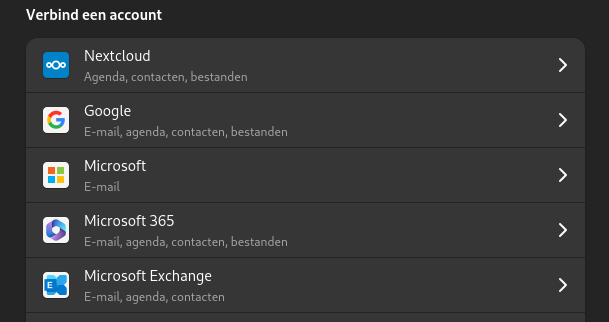
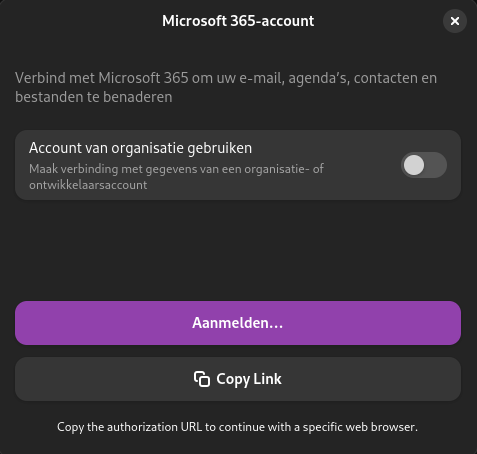
Of course… it didn’t work for me. I clicked on Sign in, and nothing happened. Apparently, this is a known issue. The solution?
Fixing OneDrive Sign-in on Fedora
- Install Microsoft Edge or Chromium via the Software Center.
- Reboot.
- Try signing in again—surprise! It works.
Now, you should be able to access your OneDrive files through the File Explorer. (I tested this on Ubuntu, and it worked flawlessly.)
But since I use Fedora, things weren’t going my way…
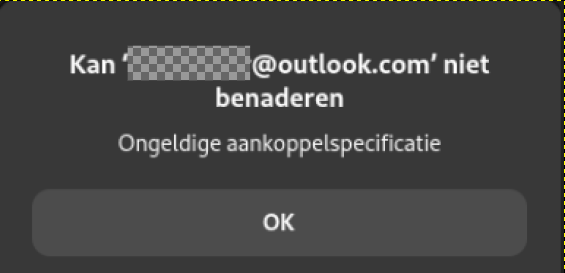
This seems to be an issue specifically between GNOME, Fedora, and Microsoft.
A Better Alternative: rclone
Thankfully, I have ChatGPT, which suggested a brilliant alternative: rclone.
What is rclone?
Rclone is a command-line tool for managing files on cloud storage. For many Windows users, this might sound intimidating, but trust me—once you try it, you’ll be amazed at how simple it is!
Setting Up OneDrive with rclone on Fedora
Step 1: Install rclone
Open the Terminal (press the Super Key—the Windows/Command key—to open GNOME’s activities menu, type “T”, and select “Terminal”).
Run the following command:
sudo dnf install rclone
Step 2: Configure rclone for OneDrive
Follow the instructions from the official rclone OneDrive guide.
Step 3: Automatically Mount OneDrive on Fedora Startup Using rclone
To automatically mount OneDrive when Fedora starts, you can configure the rclone mount command as a systemd service. This ensures that your OneDrive mount starts automatically when you log in.
Step 3-1: Create a systemd service for rclone
Open a terminal and create a new systemd service file:
Open a terminal and create a new systemd service file:
nano ~/.config/systemd/user/rclone-onedrive.service
Add the following content (adjust the mount path if necessary):
`[Unit] Description=Mount OneDrive using rclone After=network-online.target
[Service] Type=simple ExecStart=/usr/bin/rclone mount OneDriveRclonename: /home/YOURUSERNAME/OneDrive –vfs-cache-mode writes –allow-other –allow-non-empty ExecStop=/bin/fusermount -u /home/YOURUSERNAM/OneDrive Restart=always RestartSec=10
[Install] WantedBy=default.target`
Save the file and exit nano (CTRL + X, then Y, then Enter).
- Replace OneDriveRclonename with the name you set up in rclone (if you used “OneDrive”, then it’s just “OneDrive”).
- I initially tried using
~/OneDrive, but it didn’t work for me—so save yourself the headache and use the absolute path instead.
Step 3-2: Enable and Start the Service
Reload the systemd daemon:
systemctl --user daemon-reload
Start the service manually to test it:
systemctl --user start rclone-onedrive
Ensure the service starts automatically when you log in:
systemctl --user enable rclone-onedrive
Step 3-3: Verify Everything Works
After restarting your system, OneDrive should automatically be mounted.
So why Linux
Now everything works I can say, it is beautiful OS. In principal you are up-and-running in 15 minutes installing Linux + 10 minutes update and you are ready to go. Yep, that;s it. Next is installing application from Software Center. Wauw, wauw, wauw. In 5 minutes I installed:
- Gimp (alternative for Photoshop)
- Visual Studio Code (my go to to edit code/ text for Home Assistant, etc)
- Darktable (alternative for Lightroom)
- Chrome
- Obsidian
- Only Office (Microsoft office alternative, which I prefer above Libre Office. This was installed with Fedora and that’s also very nice, just click on uninstall and done (in seconds, not minutes))
- Pika Back-up (easy back-up)
- And many more, but above is what I mainly use.
Next: Enjoy the ride and follow some tips from the experts
Use google and look for “Things to do after installation X”, I liked the tips of Learn Linux TV: https://www.youtube.com/watch?v=GoCPO_If7kY&t=584s easy and beautiful.